
Docs Light and atmosphere
Lighting
Pick a mood with a preset, aim the sun, and let torches, lanterns and lava do the rest.
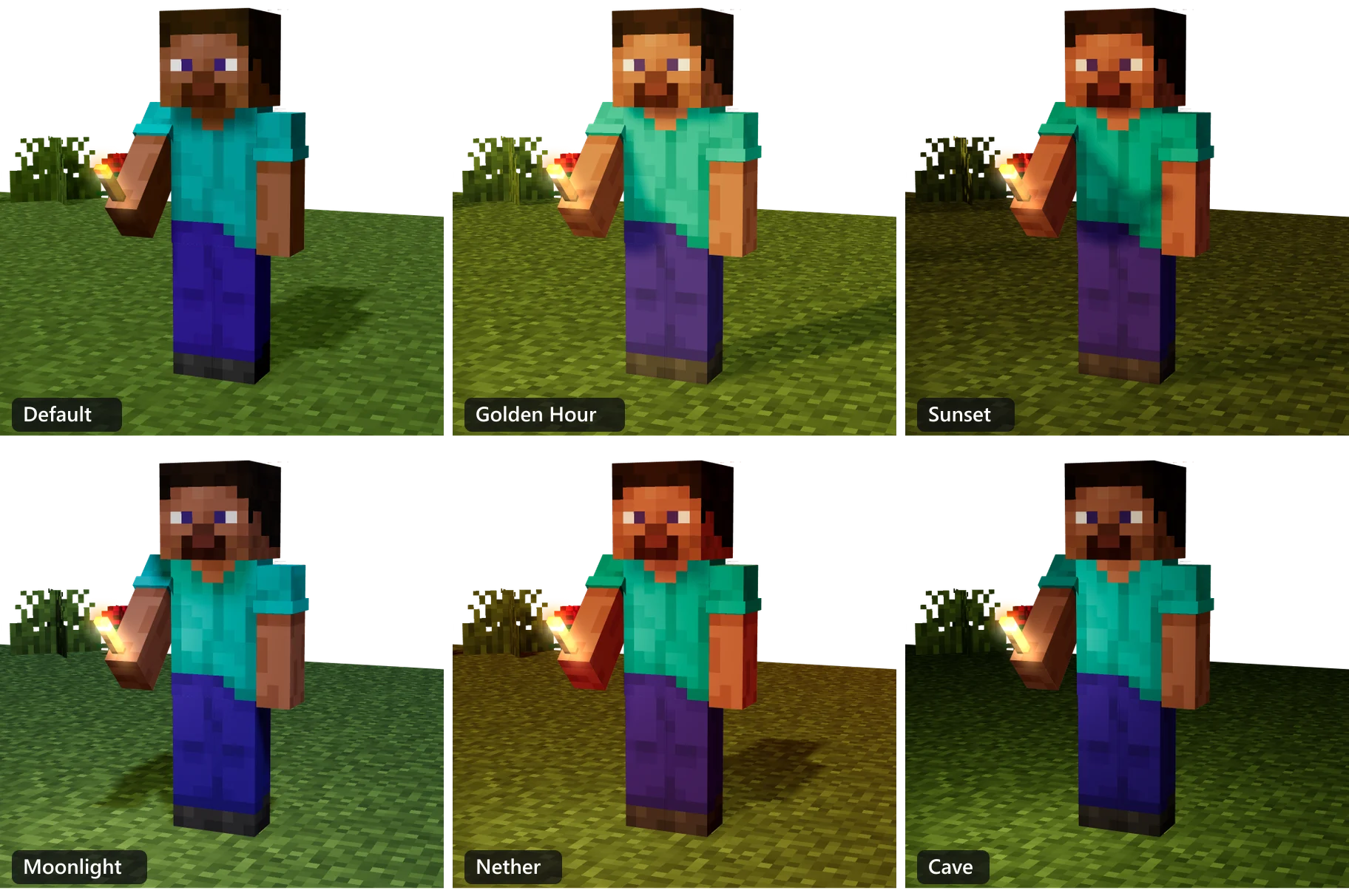
Lighting presets
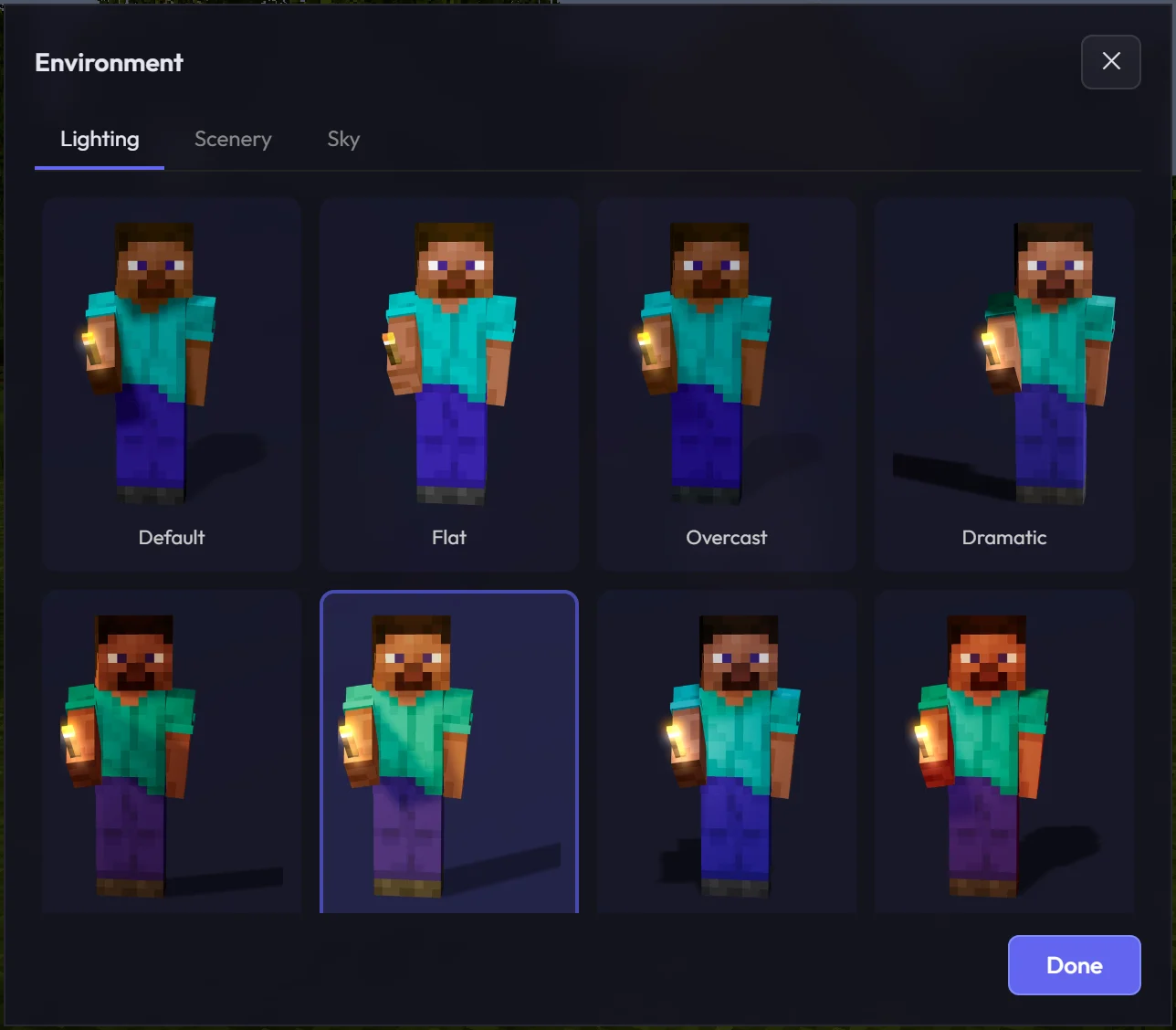
Choose Environment, then the Lighting tab. A preset sets the colour and strength of the light, how dark the shadows are, where the sun sits, and how strongly light sources glow:
| Preset | Looks like |
|---|---|
| Default | Clear, neutral daylight. |
| Flat | Even light with no shadows. Good for clean character pictures. |
| Overcast | Soft, cloudy daylight. |
| Dramatic | Strong light from the side and deep shadows. |
| Sunset | A low orange sun with long shadows. |
| Golden Hour | Warm, soft evening light. |
| Moonlight | Cool blue night. The light is the moon. |
| Nether | Hot red light from below. |
| End | Dark purple, with a glow from behind. |
| Indoor | Soft warm light for inside buildings. |
| Cave | Near darkness, lit by torches, lanterns and lava. |
Picking a preset moves the sun to suit it, unless you've already moved the sun yourself.
Torches, lanterns and other light sources
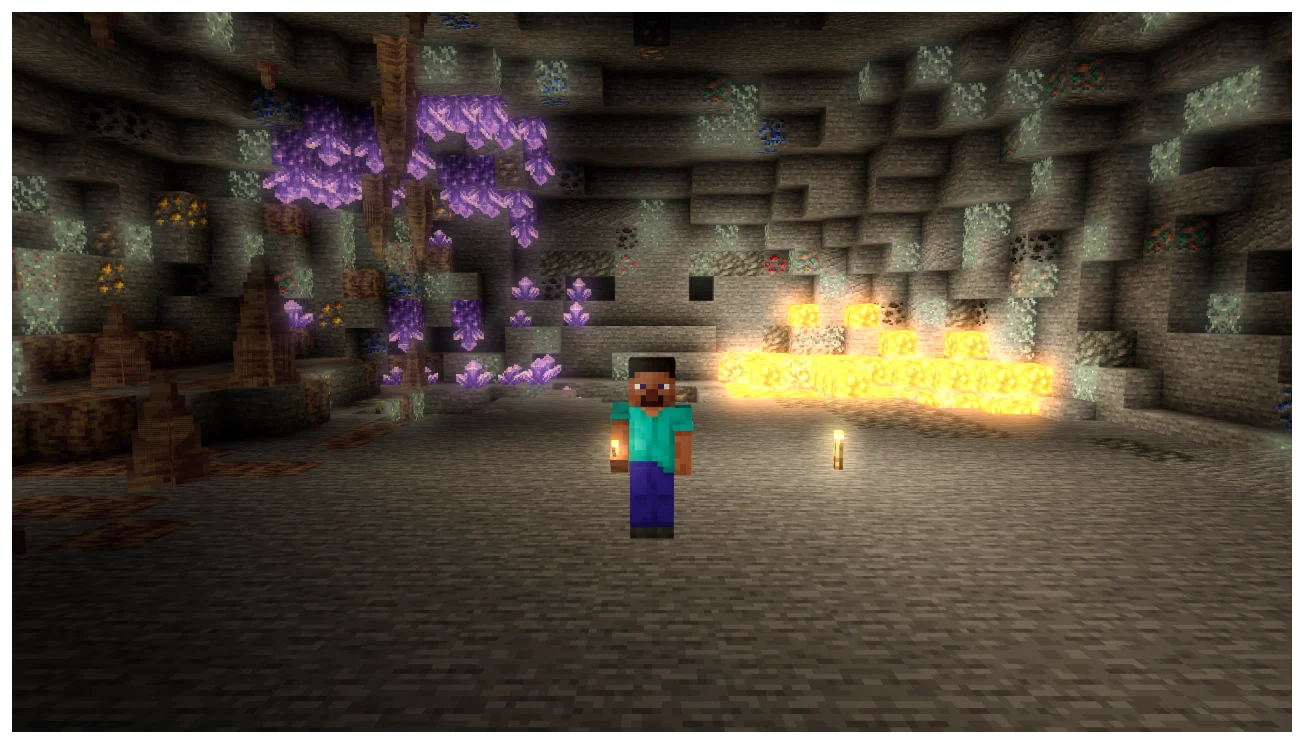
Anything that gives off light in Minecraft does here too: torches, lanterns, glowstone, sea lanterns, lava, campfires, glow berries, copper bulbs and the rest. They light up the blocks around them, and the players and mobs nearby, even when held in a hand. They glow softly too.
Like in the game, they barely show at midday and take over at night or underground. For a scene lit only by its torches, use the Cave preset; for a lit interior, Indoor.
Glowing mob parts, such as spider eyes or the blaze, glow too.
Aiming the sun
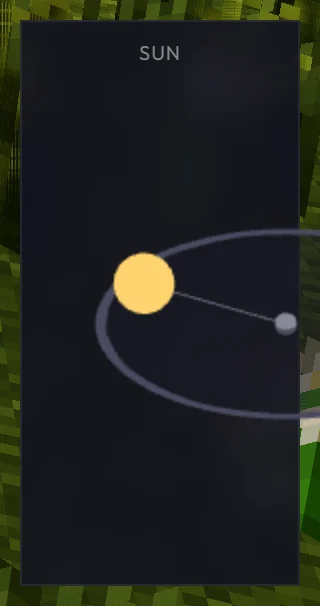
The sun widget in the bottom corner shows where the main light comes from. Drag inside it: left and right go round the compass, up and down change its height. The shadows follow straight away, and with a sky behind the scene, the sky follows too (see Sky and weather).
Extra lights
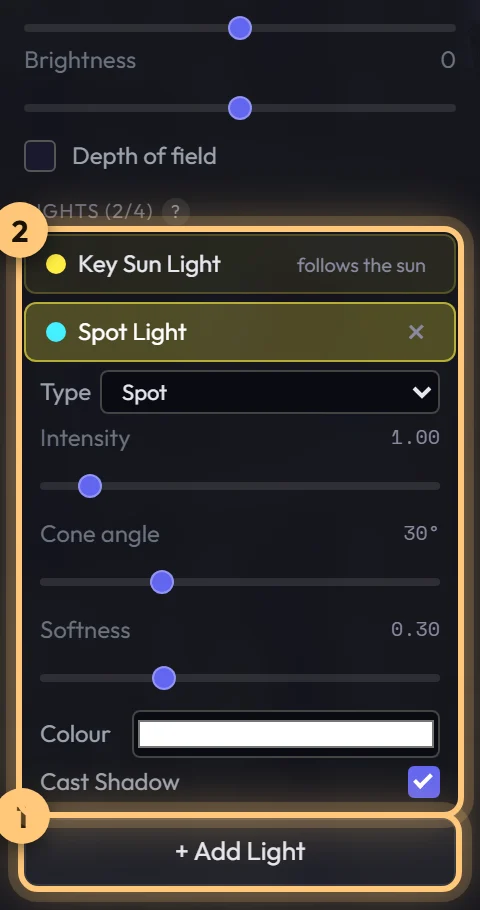
Add up to 3 lights alongside the sun with + Add Light:
- Sun: parallel light from one direction.
- Spot: a cone of light, with its width and edge softness.
- Point: light in every direction from one spot, like a bulb.
Each has a colour, a strength and a shadow switch. Select a light's sphere in the 3D view to move or aim it. Each extra light with shadows makes the preview a little slower.
Shadows and brightness
- Ground shadow puts a soft shadow under your players when there's no scenery. Turn it off for a clean cut-out.
- Shadow softness: left for crisp, sharp shadows, right for soft ones.
- Brightness lightens or darkens the whole picture.
- Double-click any slider to put it back to its starting value.
Ready to make something?
Open the Studio