
Docs Building a scene
Blocks, items and mobs
Every block and item in the latest Minecraft, every mob with a spawn egg, furniture such as beds, chests and paintings, and 187 of the game's own buildings, ready to place in your scene.
Finding things
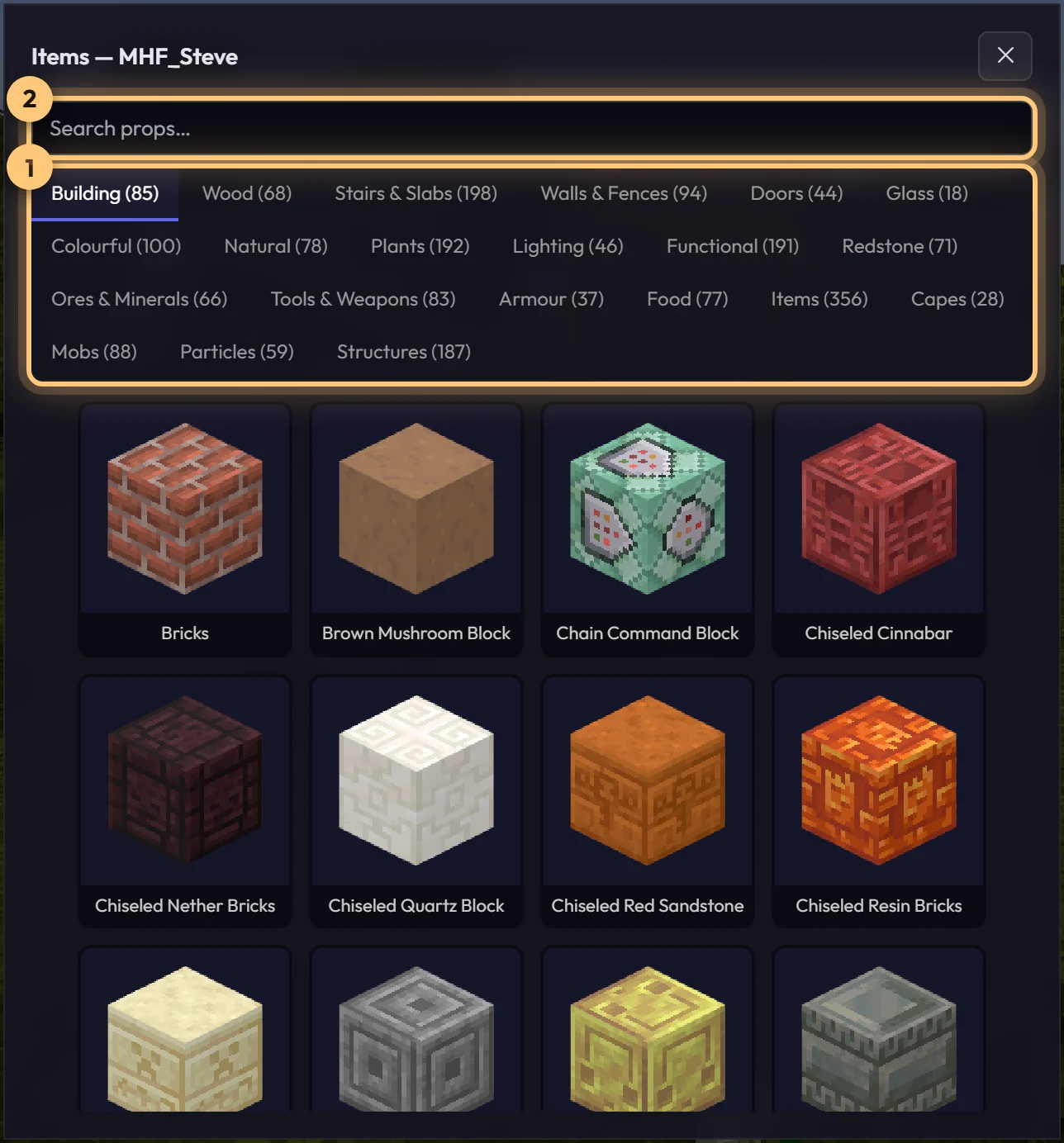
Choose Browse Props…. Everything is grouped into tabs (building blocks, wood, stairs and slabs, plants, lighting, redstone, tools and weapons, armour, food, mobs, particles and more), and the search box finds anything by name.
The picker is made from the game itself, so new blocks and items arrive with each Minecraft update.
Placing a block
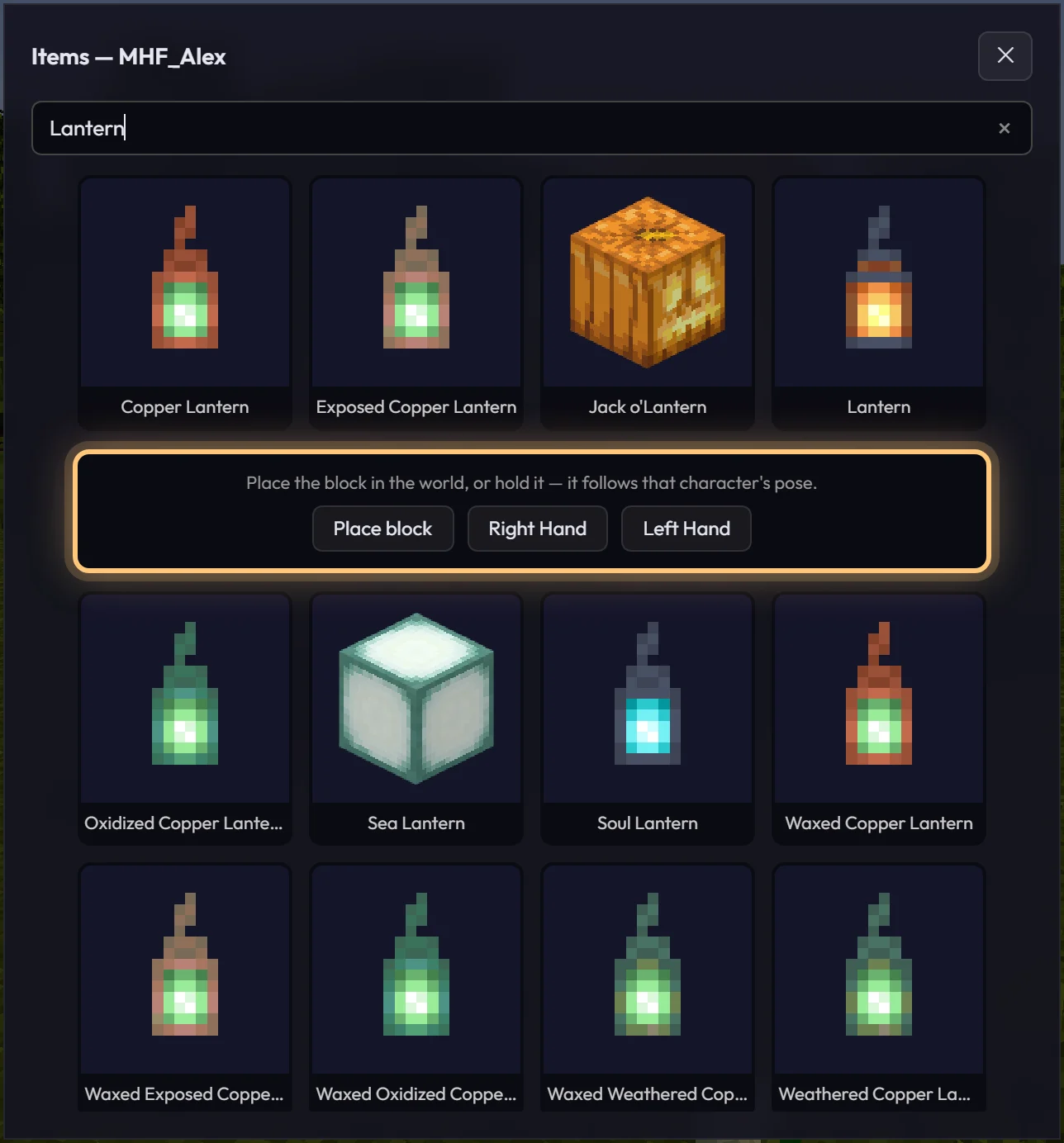
Choosing a block asks where it goes: Place block puts it in the world, or Right Hand / Left Hand gives it to the selected player to hold. Items such as swords offer the same choice, with Place in world to lay one down (see Holding items and armour). Armour goes straight onto the selected player.
A new block lands in the middle of the scene. Drag its handles to move it. Blocks sit on a 16-step grid like the game's pixels, so you can line them up exactly.
Block settings
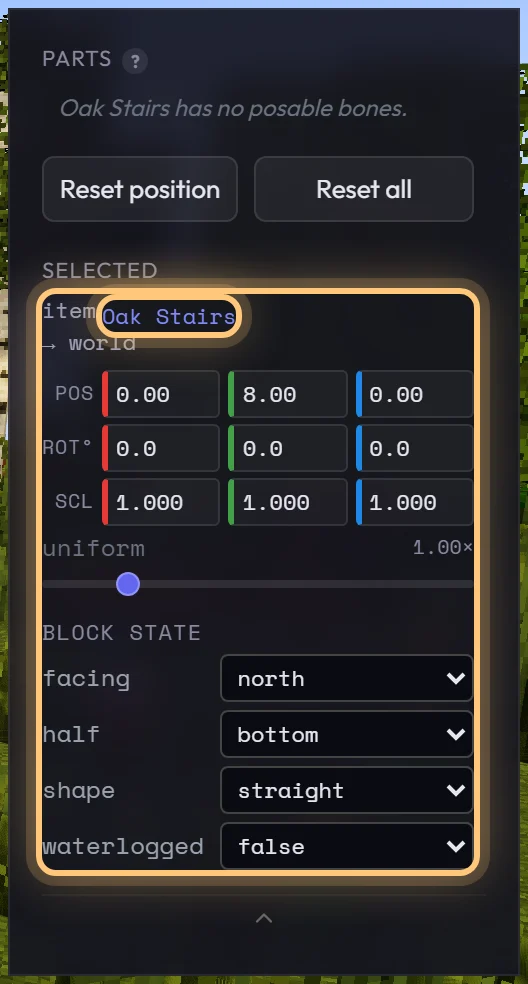
Select a block to see its settings under Block state: the same choices the game has. Turn stairs and set their shape, open doors and trapdoors, light candles and campfires, grow crops, pick a lantern that hangs, stack more candles, and so on.
Mobs
The Mobs tab has every mob that has a spawn egg. Their legs, arms, heads and tails can be posed like a player's: select the mob, then pick a part from the list. Glowing parts glow, such as spider and enderman eyes, the blaze and the glow squid.
Furniture and decoration
- Beds in all sixteen colours.
- Chests of every kind (normal, trapped, ender, copper, Christmas), single and double. Select a chest and choose its lid in the parts list to open it.
- Paintings: every painting in the game, at its real size.
- Item frames, the armour stand, mob heads, boats and chest boats, and the minecart.
- Particles: hearts, flames, notes, sparkles and more.
- Capes: put a cape from the Capes tab on the selected player.
Structures
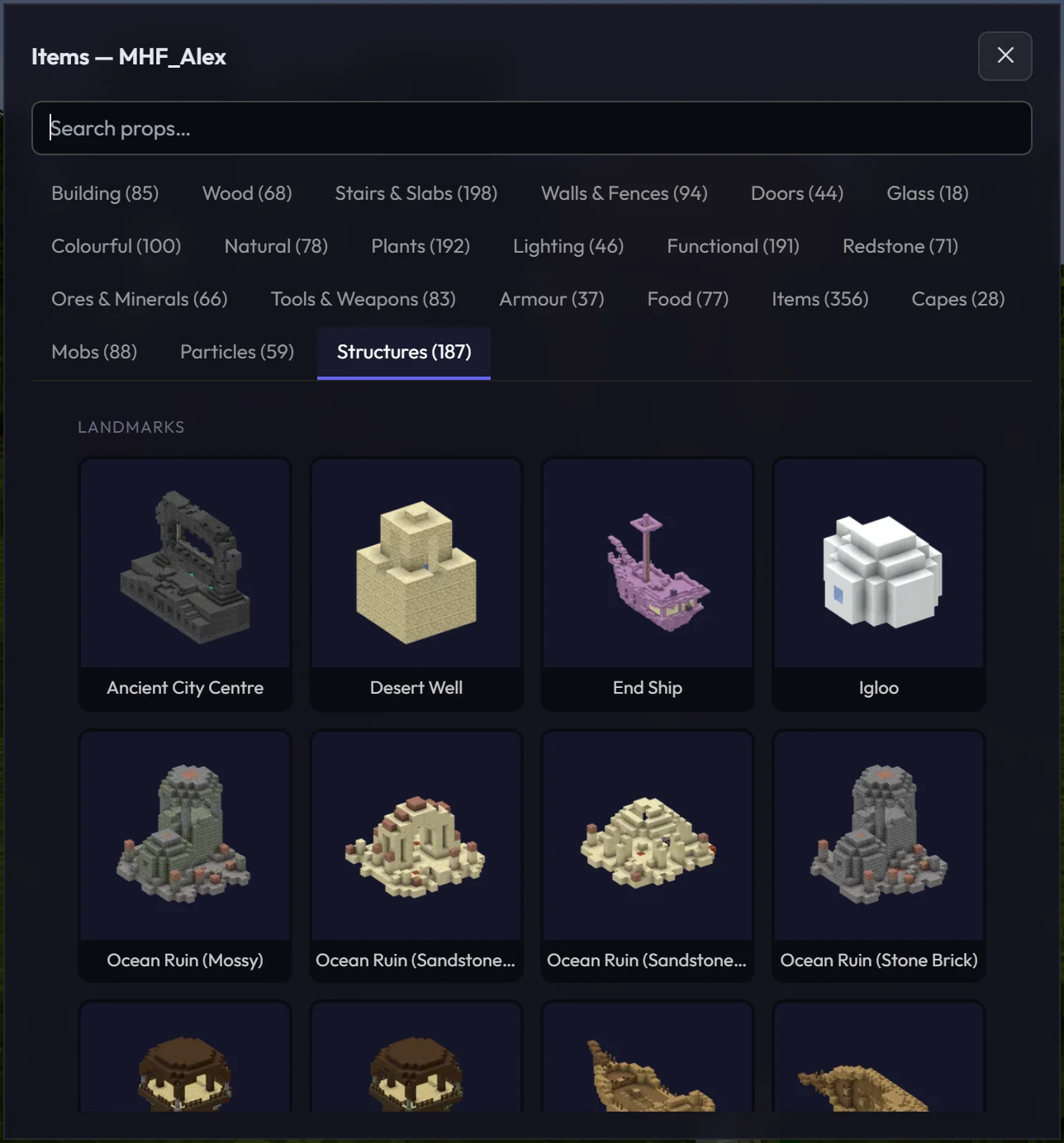
The Structures tab has 187 buildings from the game itself, in sections:
- Landmarks: the ancient city centre, desert well, End ship, igloo, pillager outposts, shipwrecks and ocean ruins.
- Ruined portals, including the three giant ones.
- Village buildings for plains, desert, savanna, snowy and taiga villages: every house, farm, animal pen, workshop, temple and meeting point.
A structure is placed just behind your players, at its real size, and moves, turns and scales like any other prop. Torches and lanterns in it light up the build and the players nearby. Hover a card to see its size in blocks.
As with your own structures, chests, beds, signs, banners and bells inside a building aren't shown yet; you can add chests and beds from the picker.
Arranging props
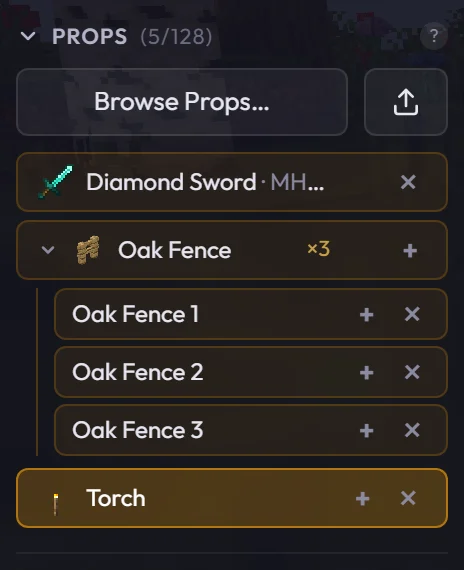
Each prop gets a card in the Props section, with its icon. Click a card (or the prop) to select it, use + or Ctrl+D to copy it, and × to remove it. A held item's card says who holds it and in which hand. A scene can hold up to 128 props.
Copies of the same prop share one card with a count, like Oak Fence ×3. Click it to list each copy, then click a copy to select it. The + on the shared card adds another copy.
The eye on a card hides the prop from the 3D view and the render without removing it, so you can try a scene with and without it. Click it again to bring the prop back.
Once a scene has more than eight props, a Find a prop box appears above the list.
Ready to make something?
Open the Studio