
Docs Getting started
The studio at a glance
Where everything is in the Studio, and what each part is for.
The layout
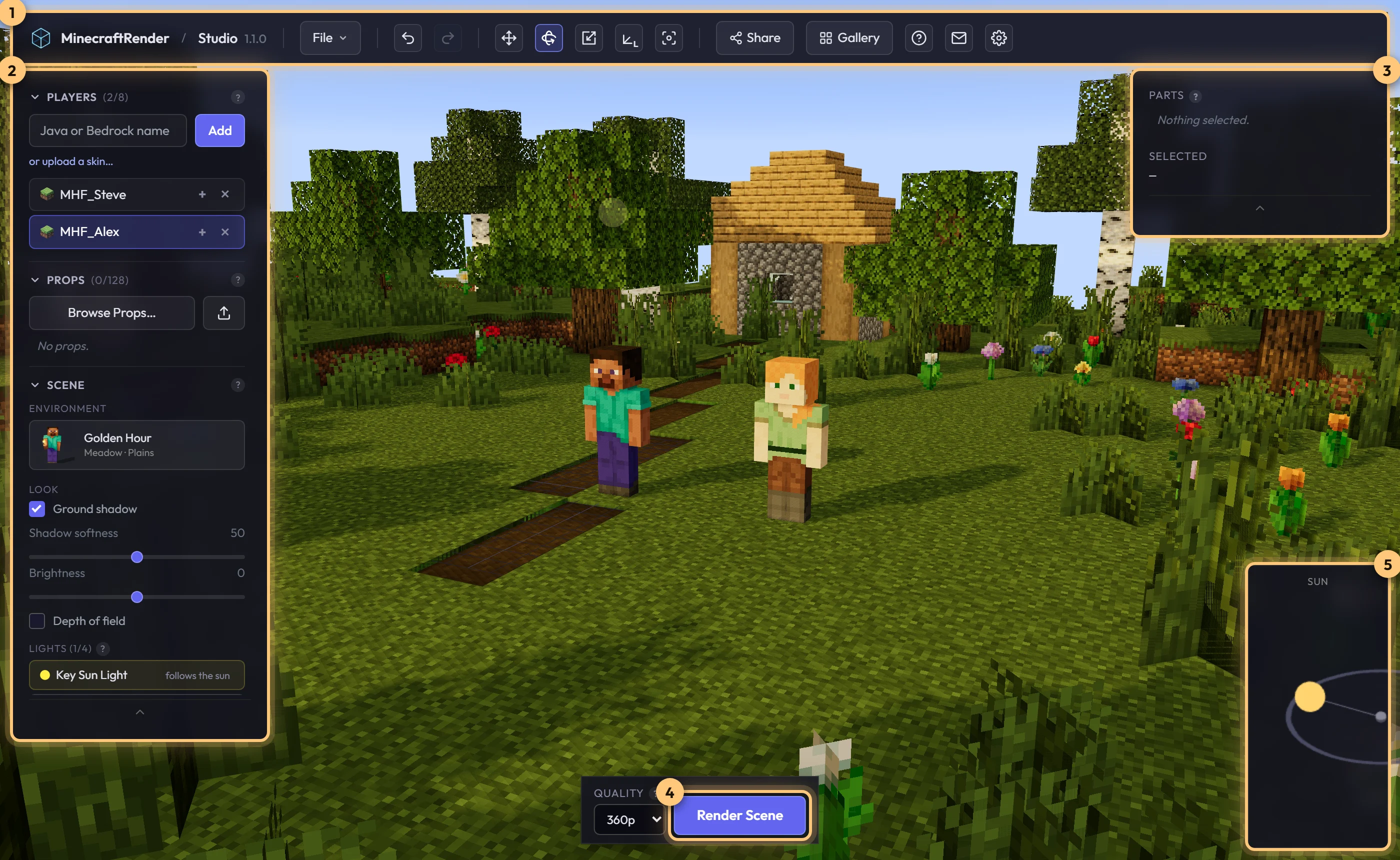
- Top bar: the File menu (new scene, open, save and recent scenes), undo and redo, the move, rotate and scale tools with the axes switch, focus, Share, Gallery, the Help menu (help pages, keyboard shortcuts, what's new), contact and settings.
- Scene panel (left), in three sections you can fold away: Players, Props, and Scene (the Environment with its lighting, scenery and sky; the Look settings for shadows, brightness and depth of field; and lights).
- Selection panel (right): the parts of the selected player or prop, the posing tools (Mirror, Copy pose, Browse Poses), and the exact position, turn and size of whatever is selected, with its options (block settings, colours, armour trims).
- Render: choose a size and make the final picture.
- The sun: drag it to change where the light comes from, and with a sky, the time of day.
The 3D view
The middle of the screen is a live preview of your scene. Click a player's arm, leg or head to select that part, or click a prop to select it. A set of handles appears on whatever is selected: drag them to move, turn or resize it. Click empty space to select nothing.
To look around: right-click and drag to orbit, middle-click and drag to pan, scroll to zoom. See Camera and Keyboard and mouse.
On a phone or tablet
On narrow screens only one panel shows at a time. A button in the top bar switches between the scene panel and the selection panel. Touch works for everything, though careful posing is easier with a mouse.
What's new
When the Studio has been updated since your last visit, it shows what changed when it opens. You can read the full list any time on the What's new page.
Ready to make something?
Open the Studio