
Docs Sharing
Saving your work
Your scene is saved as you go, and you can keep a copy as a file whenever you like.
Undo
Ctrl+Z undoes your last change and Ctrl+Y redoes it, up to 100 steps back. That includes adding and removing players and props, starting a new scene and opening another one, so nothing is lost by a wrong click.
Autosave
The Studio saves your scene in your browser every time you change something, and brings it back when you return. It's kept in this browser on this device only.
Scene files
Scenes are kept in the File menu in the top bar.
- Save to file (
Ctrl+S) gives you a.jsonfile with everything in it: players, poses, props (uploaded ones included), lighting, sky, scenery and camera. Use it to keep a scene for good or move it to another computer. A scene of just props or a build can be saved too. - Open… (
Ctrl+O) opens a scene file, or a shared scene: paste its link or type its code. You can also drag a file onto the 3D view. - Recent scenes lists scenes you've shared or opened lately.
- New scene starts over. If you didn't mean to, choose Undo in the message that appears.
Settings
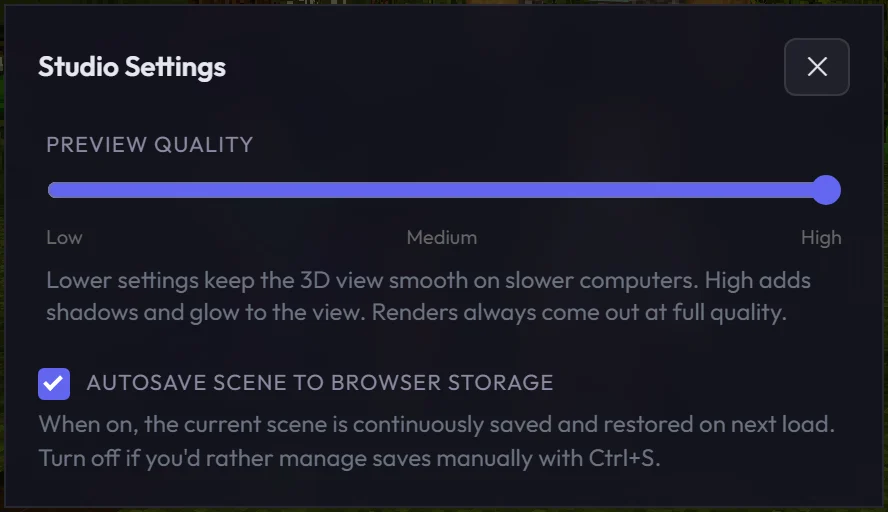
- Preview quality: lower it if the 3D view is slow. It doesn't change your renders.
- Autosave: turn it off if you'd rather only save to files.
Settings are kept in your browser. Clearing the site's data resets them and removes the autosaved scene.
Ready to make something?
Open the Studio