
Docs Building a scene
Posing
Turn a player's head, arms, legs and body exactly how you want, or start from a ready-made pose and adjust it.
Posing a part
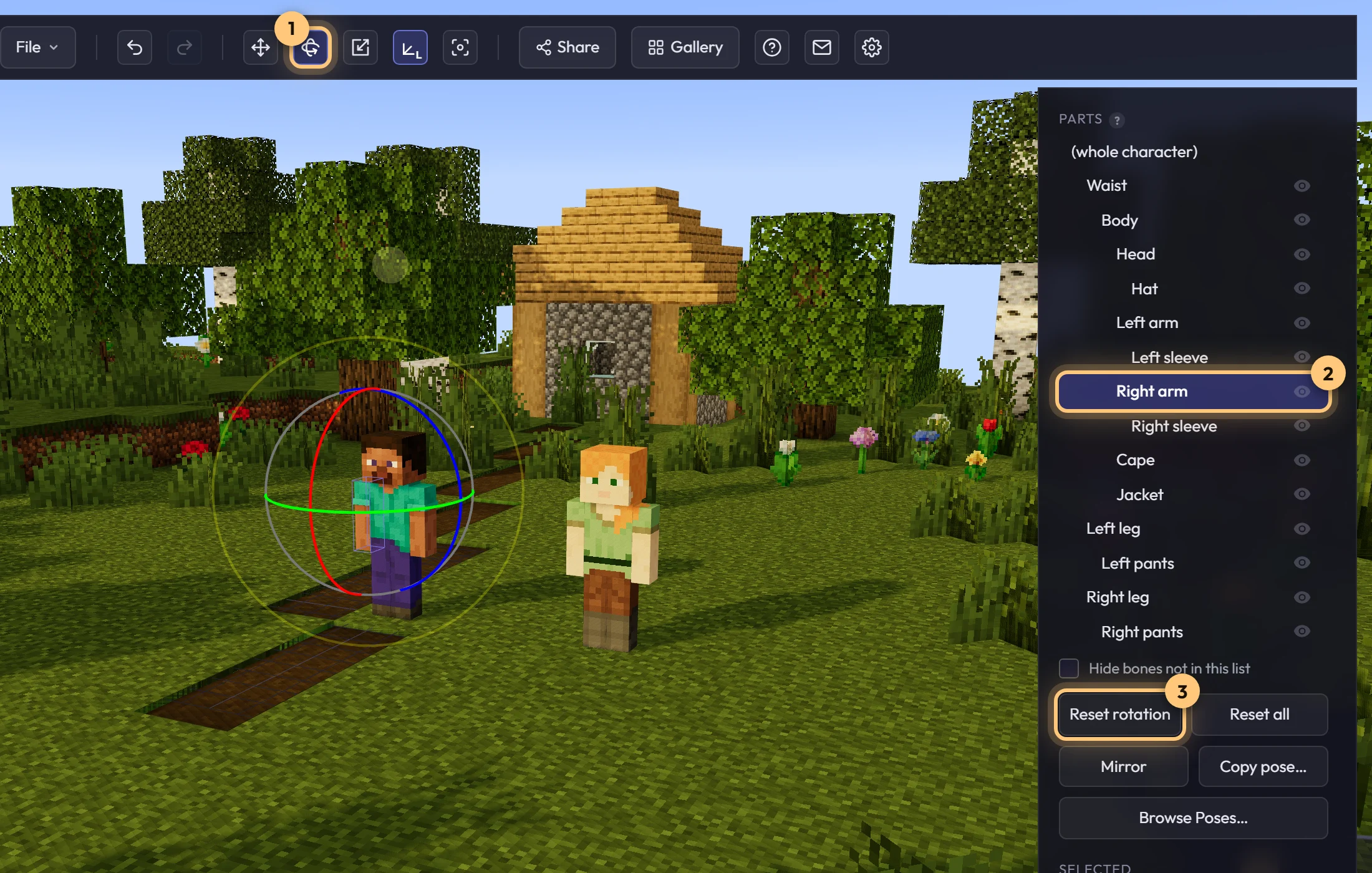
Click a part of a player in the 3D view, or pick it from the list in the selection panel. Rings appear around it: drag a ring to turn the part around that direction. The tools in the top bar switch between move, rotate and scale.
Parts get the rotate tool and whole players and props get the move tool when you select them. If you switch tool, the studio remembers your choice for that kind of selection.
To set an exact value, type it into the position, rotation or scale boxes under Selected. The boxes keep the numbers you typed.
Hold Shift while dragging to snap: 15° steps when turning, whole pixels when moving, tenths when scaling.
The axes button in the top bar (or X) switches the handles between the part's own directions (L) and the world's (W).
Parts have plain names, such as Left arm or Front leg (upper). Hover a part in the list to see its name inside the model.
Clicking a player's sleeve or jacket selects the arm or body under it, so you don't need to hide outer layers to pose.
To move a whole player, choose (whole character) at the top of the parts list.
Mirroring and copying poses
With a part selected, Mirror gives the matching part on the other side the same pose, so a raised right arm becomes a raised left arm too. Parts attached to it are mirrored as well.
With the whole character selected, the same button becomes Flip pose and swaps the pose from left to right.
Copy pose… gives the selected player's pose to another player, or to everyone else in the scene. Where each player stands stays as it is.
Ready-made poses
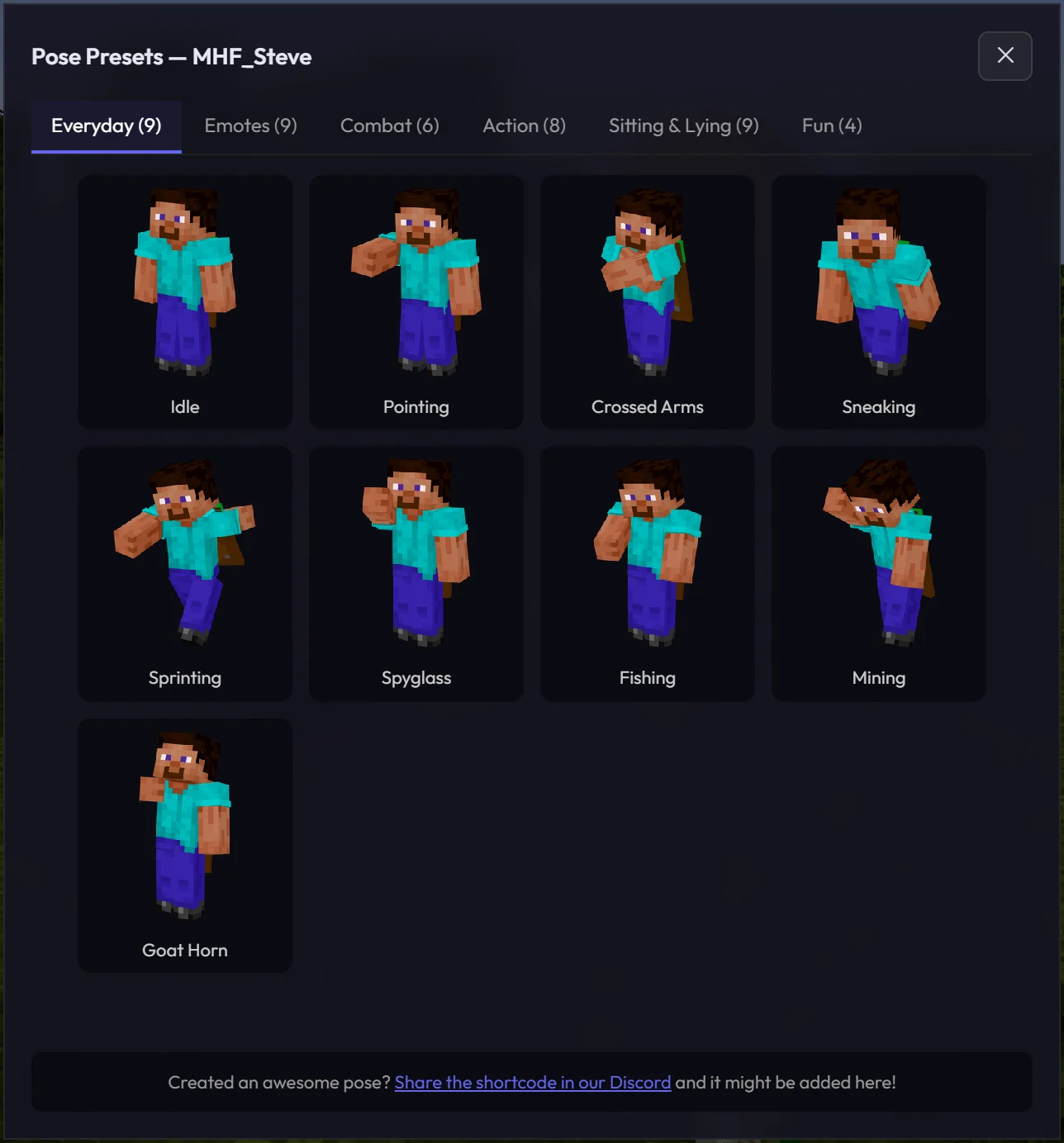
Select a player, choose Browse Poses… in the selection panel (under Mirror and Copy pose) and pick one. It poses the selected player straight away, and you can adjust any part afterwards. Other players, props, lighting and the camera stay as they are.
The poses come in six groups: Everyday, Emotes, Combat, Action, Sitting & Lying and Fun. Several match the way the game itself holds things, so they pair with an item:
- Bow Draw with a drawn bow, Crossbow Aim with a loaded crossbow, Trident Throw with a raised trident, Shield Up with a shield in the left hand.
- Sword Swing, Mining and Fishing with a sword, pickaxe or fishing rod.
- Spyglass and Goat Horn with those items.
- Riding sits the player as the game does on horses, boats and minecarts; Sleeping lies them flat for a bed; Elytra Glide goes with elytra.
Made a pose you're proud of? Share it in our Discord and it might be added to the list.
Hiding and fading parts
The eye beside each part in the list hides or shows it, for example to take off a hat layer or a cape. Each part also has a see-through slider for a faded look.
Bedrock Character Creator outfits list each piece by name (a hairstyle, a jacket, boots), so you can hide any piece on its own.
If you share a scene for other people to use, tick Hide bones not in this list. Then pieces that only exist on someone else's outfit, such as extra armour or a belt, stay hidden when their player is dropped in.
Starting over
The reset button follows the tool you're using: Reset rotation, Reset position or Reset size undoes just that on the selected part, player or prop. Reset all resets every part of the selected player. Both can be undone with Ctrl+Z.
Ready to make something?
Open the Studio