
Docs Sharing
Sharing and the gallery
Share a scene as a link or a picture, change it later without breaking the link, and find scenes other people have made.
Sharing a scene
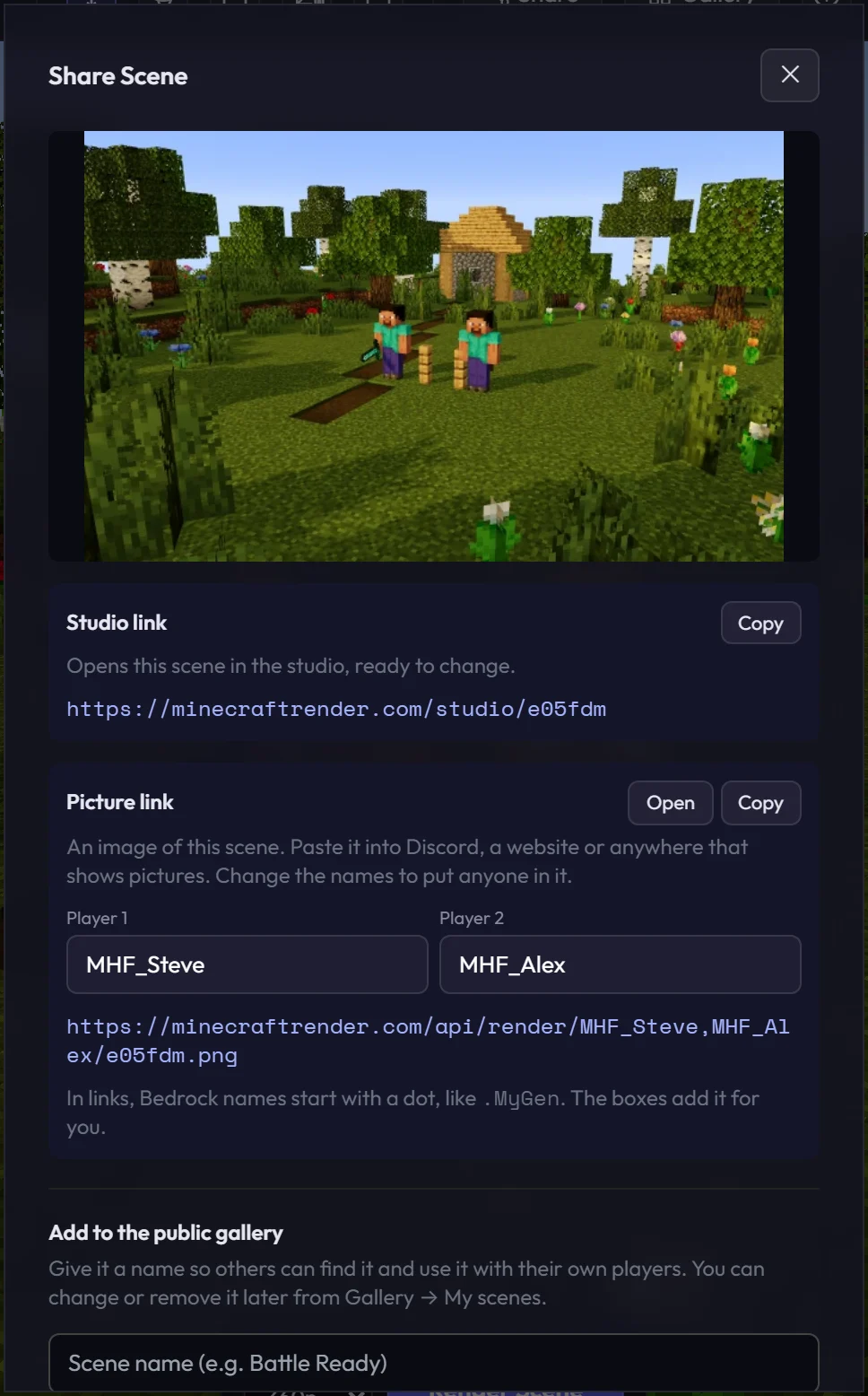
Choose Share in the top bar. Your scene gets a 6-character code, a preview picture and two links:
- Studio link (
/studio/abc123): opens your scene in the Studio, with the same players, ready to change. - Picture link: an image of the scene you can paste into Discord, a website or anywhere that shows pictures. There's a box for each player, filled in with the players in your scene. Type other names to put anyone in it. Bedrock names need a dot in front in links (
.MyGen); the boxes add it for you when a name is only on Bedrock.
Developers can build these links themselves: see Render API.
Changing a shared scene
If you change a scene after sharing it, Share asks what to do:
- Update that link keeps the same code, so everyone who has the link, and anywhere you've posted the picture, gets the new version.
- Make a new link leaves the old one as it was and gives the changed scene its own code.
Only the browser that shared a scene can update it. Opening one of your scenes again (from its link, File → Open, or Gallery → My scenes) lets you update it later.
Adding it to the gallery
A shared scene is unlisted: only people with the link can find it. To put it in the public gallery, give it a name, and if you like a description and some tags, then choose Add to gallery.
To change its details or take it out of the gallery later, open Gallery and choose My scenes. Taking a scene out of the gallery doesn't break its link.
Browsing the gallery
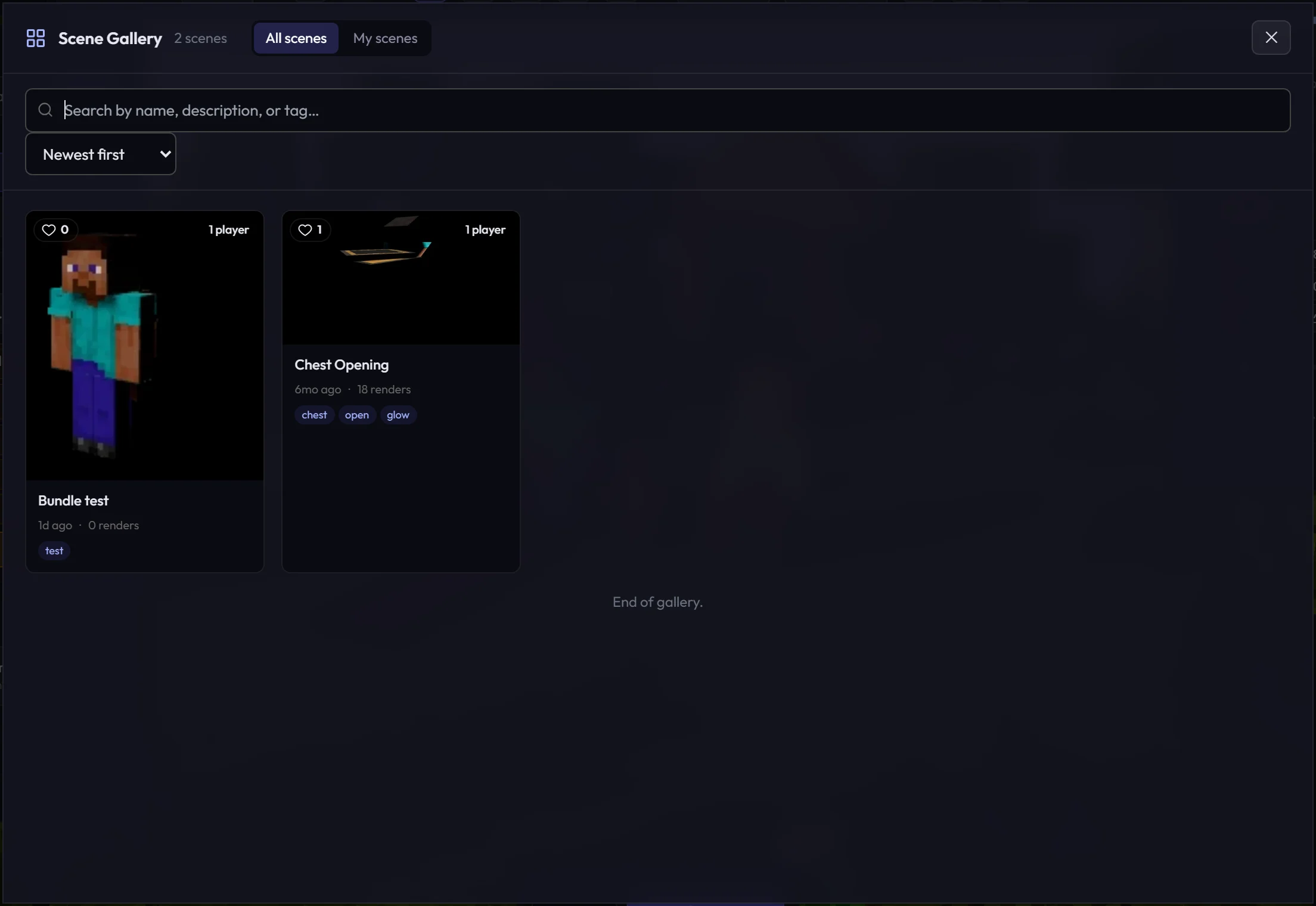
Choose Gallery in the top bar to see scenes shared by everyone. Search by name, description or tag, click a tag to see every scene with it, sort by newest, most rendered or most liked, and like the ones you enjoy with the heart.
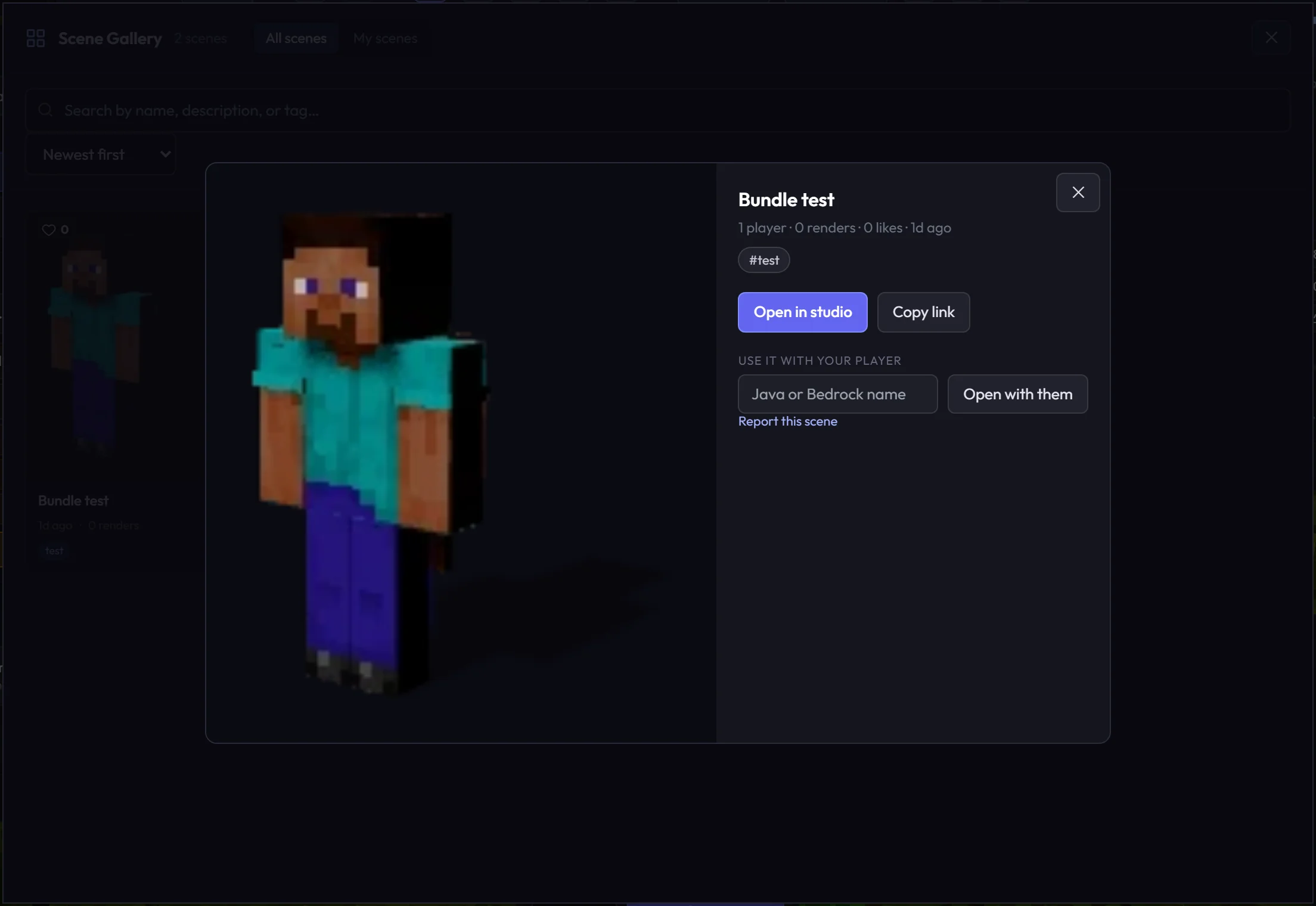
Click a scene to see it bigger. Open in studio opens it with the players it was shared with. To use it with your own player, type your name under Use it with your player and choose Open with them.
Opening a scene replaces the one you're working on; the message that appears has an Undo button if you change your mind.
See something that shouldn't be there? Choose Report this scene and we'll take a look.
How long shared scenes last
Scenes in the gallery stay there. Unlisted scenes that nobody has opened or rendered for 90 days are removed.
Ready to make something?
Open the Studio